Android GPS Permission Guide for Accurate Trips
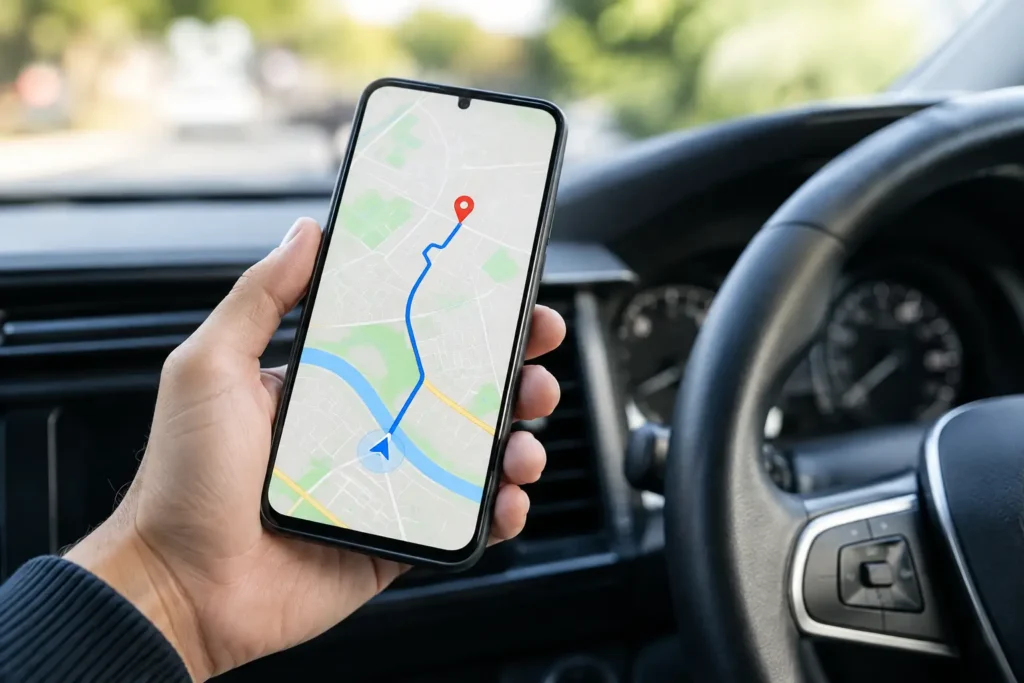
A speedometer app can only be as useful as the location data Android allows it to read. This Android GPS permission guide explains the settings that matter when you want dependable speed, distance, route, and trip information without giving every app more access than it needs.
For drivers, the practical goal is simple: allow a trusted navigation, speedometer, or trip app to use precise location while you are using it. That usually delivers the accuracy needed for a live GPS speed display. Background access has a narrower role. It is useful only when the app must continue recording after you switch apps or lock the screen.
What Android GPS Permission Actually Controls
Android calls this Location permission, not GPS permission. Location is broader than the GPS receiver in your phone. Android may combine satellite signals with Wi-Fi, Bluetooth, nearby cell towers, motion sensors, and map data to estimate where you are.
That combination is generally good for everyday use. It helps the phone find a position faster after it has been indoors, in a parking garage, or in an unfamiliar area. For road speed and trip distance, however, the quality of the final result still depends heavily on clear access to satellite signals, a stable phone position, and the permission level you select.
Most Android phones present four common choices when an app requests location:
- Allow only while using the app gives the app access while it is open and active on your screen.
- Ask every time requires a fresh decision whenever the app needs location.
- Allow all the time allows background location access, including when the app is not open.
- Don’t allow blocks location access.
The wording can differ by Android version and phone maker. Samsung, Google Pixel, Motorola, and other devices place the same controls in slightly different menus, but the underlying decision is similar.
For a GPS speedometer used during a drive, Allow only while using the app is the right default. It supports a live speed display and trip data while keeping access limited to active use. If you expect an app to log an entire drive after the display turns off or after you switch to another app, read its background-location explanation before selecting a broader option.
Precise vs. Approximate Location
The most consequential choice for a speed or trip app is often not the timing of access. It is whether Android provides Precise location or Approximate location.
Approximate location deliberately gives an app a broad area instead of your exact position. It can be a sound choice for local weather, shopping, or general area recommendations. It is not a strong fit for a tool that calculates real-time road speed, measures a route, or tracks mileage.
Precise location allows the device to provide a much more detailed position estimate. It is the setting to use for a trusted GPS speedometer, navigation app, outdoor activity tracker, or route logger. GPS Speedometer, for example, needs precise location to calculate a useful live speed reading from movement over time.
Precise does not mean perfect. Satellite geometry, heavy tree cover, urban streets lined with tall buildings, weather conditions, and the phone’s antenna placement can all affect performance. A precise permission gives the app the best available input. It cannot eliminate the limitations of the physical signal.
How to Change GPS Permissions on Android
On most phones, start by opening Settings, then go to Apps and select the app you want to review. Choose Permissions, tap Location, and select the level of access that matches how you use the app. Turn on Use precise location when accurate speed, route, or distance calculations are required.
A faster route on many Android versions is to press and hold the app icon, tap App info, then open Permissions. This is useful when you are troubleshooting in the driveway or just before a trip.
If the app is allowed to use location but still shows no data, check the phone-wide location switch. Open Settings and search for Location, then confirm it is enabled. Airplane mode, battery saver, and a recently restarted phone can also delay the first reliable position fix.
The first fix after launching an app may take longer than later updates, especially if the phone has not used location recently. Step outside, keep a clear view of the sky, and give the phone a minute before assuming the app is malfunctioning.
When Background Location Is Worth Allowing
Background location is not automatically bad, and it is not automatically necessary. The correct setting depends on the job.
Allow it when you specifically want an app to keep recording a trip after you lock the phone, answer a call, use another app, or put the device in a pocket. This can matter for delivery logs, fleet records, hiking tracks, family safety tools, and long drives where you do not want the screen running the entire time.
Do not allow it merely because an app asks. A live dashboard-style speedometer that you watch while driving usually works well with access only while the app is in use. Limiting access reduces unnecessary battery use and gives you a cleaner privacy boundary.
Android may also show a separate prompt or settings page for background access. That extra step is intentional. Review the app’s purpose, reputation, and privacy policy before approving it. If its stated function does not clearly require ongoing location, choose while-in-use access instead.
Fixing Location Permission Problems
When GPS-based speed or trip data is wrong, permission is only one possible cause. Work through the basics in order. Confirm that Location is enabled phone-wide, the app has precise access, and you are outside or near a window with an open view of the sky.
Next, make sure Android is not aggressively restricting the app’s battery use. In the app’s settings, look for Battery and select an option such as Optimized or Unrestricted if the app repeatedly stops recording during a trip. Unrestricted operation can consume more power, so reserve it for apps where continuous tracking is genuinely useful.
A phone mount can also affect real-world results. Mounting the device low in a console, inside a closed compartment, or behind heavily coated glass may weaken satellite reception. A stable windshield or dashboard mount usually gives the phone a clearer view and makes the display easier to read without handling it while driving.
Finally, compare GPS speed against your vehicle’s dashboard intelligently. Many vehicle speedometers are designed not to understate speed and may read slightly high. GPS speed measures travel over ground, which can lag briefly during sharp acceleration, braking, tunnels, or signal loss. On a steady, open stretch of road, the readings should normally be close.
Android GPS Permission Guide: A Practical Privacy Standard
Treat location access like any other operational decision: give the app enough access to do its stated job, no more. A navigation app needs precise location. A neighborhood news app probably does not. A trip recorder may justify background access; a simple live speed display may not.
Review permissions after major Android updates or when you reinstall an app. Android sometimes resets a permission, removes access from apps you have not used recently, or presents a new choice after an app update. These prompts are useful checkpoints, not just interruptions.
If you share a phone with a teenager, employee, or family member, explain the distinction between precise and background access. That small bit of permission literacy prevents both common problems: a speed app that cannot work correctly and an unrelated app that receives more location data than it needs.
A well-configured phone should feel boring in the best way. Open your trusted driving app, confirm precise location, mount the phone safely, and let the trip data do its job while your attention stays on the road.