How to Calibrate Mobile Speedometer Apps: 7-Step Guide
Last Updated: October 23, 2026
Quick Summary
To calibrate mobile speedometer apps, compare the app’s reading against a trusted reference speed, then calculate the percentage error. Use a measured distance with a stopwatch or a second GPS device on a different platform, hold a steady speed for 15 to 20 seconds, and repeat the test at several speeds.
- A half-mile course timed to the nearest second gives a reference you can calculate rather than guess.
- Hold a steady speed for at least 15 to 20 seconds so both readings settle before comparing.
- Calculate error as ((app reading minus reference speed) divided by reference speed) times 100.
- Set location permission to precise and turn battery saver off before testing the app.
- Trust the app most at steady speed on open road with a clear sky view.
Table of Contents
- What You’ll Need Before You Calibrate
- Step 1: Establish a Dependable Reference Speed
- Step 2: Run a Repeatable Speed Test With Your Phone
- Step 3: Calculate and Interpret Your Speed Error
- Step 4: Fix a GPS Speedometer Not Accurate Enough to Trust
- How GPS Speedometer App Accuracy Actually Works
- How to Test a Speedometer With GPS Against Your Dashboard
- Using a GPS Speedometer App Offline
- Frequently Asked Questions
What You’ll Need Before You Calibrate
Calibrating mobile speedometer apps means checking a phone’s speed reading against a trusted reference to see how far off it is. A reading you can’t verify is a reading you can’t trust.
GPS speed is measured from satellite position changes, not wheel rotation, so it doesn’t inherit tire size or gear ratio errors. The catch: accuracy depends on signal quality, phone hardware, and how you test.
Gather these before you start:
- A phone with a clear view of the sky
- A steady reference speed (we’ll cover how to get one)
- A straight, open stretch of road
Testing one-handed while driving is the most common mistake in this whole process. A phone in your hand means your eyes leave the road. Bring a passenger or mount the phone before you move.
Step 1: Establish a Dependable Reference Speed
A reference speed is one you trust more than the app’s reading. Without it, you’re comparing two unknowns and learning nothing.
The trap is treating any second number as a reference. A dashboard gauge, a second phone, and a stopwatch over a marked stretch are not equally trustworthy. Pick your reference deliberately, then validate it before judging the app.
Rank your reference options by what they actually measure
- A measured distance and a stopwatch. The closest thing to a ground-truth check available to a typical driver. Mark a straight, flat stretch, hold a steady speed, and time the pass: speed equals distance divided by time. A half-mile course timed to the nearest second gives a reference you can calculate rather than guess. Human reaction time adds uncertainty, so longer courses and a passenger on the stopwatch produce tighter numbers.
- A second GPS device on a different platform. A dedicated GPS unit or a second phone running a different app. Two independent GPS readings that agree give you confidence; two that disagree tell you the signal, not the app, is the problem. Keep the two devices apart so one doesn’t shadow the other’s antenna.
- Your vehicle’s speedometer. Useful as a sanity check, not as gospel. Factory gauges are commonly set a little optimistic, and tire wear, tire pressure, and aftermarket wheel sizes shift them further. Treat the dashboard as a second opinion, never as the referee.
If you plan to compare against your dashboard, it helps to understand how GPS speedometers and dashboard gauges differ before you start. They measure different things, and that gap explains most of what you’ll see.
Validate the reference before you trust it
Whichever reference you choose, run a quick consistency check first:
- Take two readings from the same reference at the same steady speed on the same pass. If they don’t agree, the reference is noisy.
- Repeat the pass. A reference that moves between passes reflects conditions, not the app.
- For a measured course, confirm the distance with a second method, a vehicle odometer or a mapping tool, before relying on it.
A reference that passes these checks is worth building a test around; one that fails will send you chasing an app problem that doesn’t exist.
Reduce uncertainty instead of chasing precision
No phone-based method gives a perfect reference, but you can shrink the error band:
- Test on a straight, level, open stretch with a clear sky view, not a curve or overpass.
- Hold speed long enough for both readings to settle, short bursts are the biggest source of noise.
- Compare at the same moment so acceleration and deceleration don’t contaminate the result.
A compass check is also worth two minutes. A phone whose compass is out of calibration can feed sloppy heading data into location calculations. Our guide on how to calibrate your phone’s compass walks through the figure-8 motion and system settings.
If your measured-course time and your second GPS device disagree by more than a couple of percent, don’t pick a winner, fix the test. A disagreement that size usually means the course wasn’t straight, the speed wasn’t steady, or one device lost its fix mid-pass.
Step 2: Run a Repeatable Speed Test With Your Phone
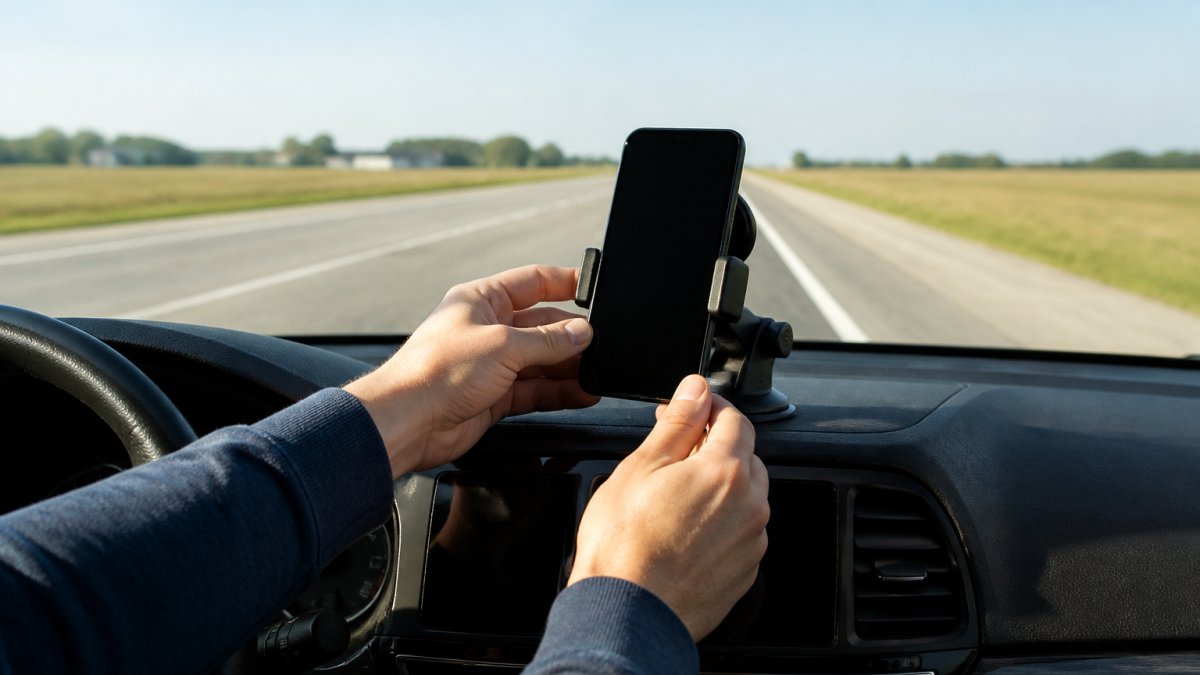
Repeatability separates a real test from a guess. Run the same route at the same speeds more than once and compare. Here’s the procedure:
- Mount the phone where it has a clear sky view through the windshield.
- Open the app and let it settle for a minute before moving.
- Drive to a steady speed on a straight, open road.
- Hold that speed for at least 15 to 20 seconds.
- Note the app reading and the reference reading at the same moment.
- Repeat at two or three different speeds.
- Run the whole test a second time on a different day.
Short bursts give noisy numbers. Sustained, steady speed gives you something you can actually compare.
Step 3: Calculate and Interpret Your Speed Error
Speed error is the difference between your reference speed and the app’s reading, expressed as a percentage. The formula is simple:
Error % = ((App reading – Reference speed) / Reference speed) x 100
Worked example. Your reference says 60 mph. The app says 58 mph.
- Difference: 58 – 60 = -2 mph
- Divide by reference: -2 / 60 = -0.033
- Multiply by 100: -3.3%
A negative result means the app reads low. A positive result means it reads high.
| App Reading | Reference | Difference | Error % | What It Means |
|---|---|---|---|---|
| 58 mph | 60 mph | -2 mph | -3.3% | Reads low |
| 62 mph | 60 mph | +2 mph | +3.3% | Reads high |
| 60 mph | 60 mph | 0 mph | 0% | Matches reference |
| 44 mph | 45 mph | -1 mph | -2.2% | Slightly low |
Run this at several speeds. A roughly constant percentage across all of them is a consistent offset; wild swings mean your test conditions are the problem, not the app.
Test at the speeds you actually drive most. An app that’s close at highway speed but noisy in town tells you more about your real use than a single test at one speed ever will.
Step 4: Fix a GPS Speedometer Not Accurate Enough to Trust
A GPS speedometer not accurate enough to trust usually traces back to signal, permissions, or phone settings, not a broken app. Check these first.
Signal, permissions, and phone settings to check first
Start with the basics:
- Location permission set to “precise.” A vague setting gives vague readings.
- Battery saver off during testing. Power saving can throttle location updates.
- Clear sky view. Tunnels, parking garages, and dense tree cover all degrade the fix.
If readings still drop out mid-drive, our guide on troubleshooting GPS signal loss while driving covers the fixes in order of likelihood.
Most “inaccurate app” complaints are really “weak signal” complaints. Fix reception first, then re-test before you change anything else.
How GPS Speedometer App Accuracy Actually Works
GPS speedometer app accuracy depends on how well the phone’s GPS receiver tracks position changes over time. The app calculates speed from the distance between consecutive position fixes divided by the time between them.
Accuracy is a function of two things: how precise each fix is and how often the phone updates it. Better reception and faster update rates produce steadier readings. A phone updating once per second and one updating several times per second won’t report the same number during acceleration, even with identical signal quality.
For a plain-language breakdown of what to expect, see how accurate a GPS speedometer really is.
Where GPS error comes from
Several sources stack up:
- Satellite geometry. Satellites clustered in one part of the sky give a weaker fix than satellites spread across the sky.
- Multipath. Signals bouncing off buildings, bridges, and overpasses arrive late and skew position (GPS.gov: GPS Accuracy).
- Atmospheric delay. The signal slows slightly passing through the atmosphere, which the receiver corrects for imperfectly.
None of these make GPS useless. They explain why a GPS reading drifts by a small amount and why steady, sustained speed smooths it out. The official GPS performance standards from the U.S. government describe the system’s design accuracy for positioning, which is the foundation every app builds on.
When readings become unreliable
Accuracy isn’t constant. It degrades in predictable situations, which tells you when to trust a number and when to re-test:
- Low speed and stop-and-go. At walking pace and in traffic, the distance between fixes is small relative to position error, so the percentage error climbs. A reading that looks wild at 5 mph may be perfectly fine at 50 mph.
- Tunnels, parking garages, and urban canyons. The receiver loses or mis-hears satellites, and the app may coast on the last good fix or jump when the signal returns.
- Dense tree cover and heavy weather. Foliage and storm cells attenuate the signal, which slows the fix and adds noise.
Rule of thumb: trust the app most at steady speed on open road with a clear sky view, and least in tunnels, garages, and stop-and-go traffic.
Separate app error from signal error
Before you conclude the app is inaccurate, run a quick diagnostic:
- Note whether the reading is steady or jumping. A steady offset is usually a real difference; a jumping number is usually signal.
- Check the app’s signal indicator, if it has one, or watch whether the fix holds when you stop moving.
- Re-test in the same spot on a different day. If the error changes with conditions, it’s signal; if it holds steady, it’s the reading itself.
- Compare against a second device. If both drift together, the sky is the problem; if only one drifts, look at that phone’s settings and hardware.
A GPS speedometer is most trustworthy at steady speed with a clear view of the sky, and least trustworthy at low speed, in tunnels, and in stop-and-go traffic. Test where the app is strong, then note where it weakens so you know what you’re working with.
How to Test a Speedometer With GPS Against Your Dashboard
Testing a speedometer with GPS against your dashboard is straightforward once you have a reference: drive at a steady speed, read both displays at the same moment, and compare.
What you’ll typically find:
- Dashboard reads slightly high. Factory gauges are often set a touch optimistic.
- GPS reads closer to true speed. It measures actual ground speed.
- The gap grows with speed. A small offset at low speed can widen at highway pace.
A discrepancy is normal. What matters is knowing which number is closer to reality. For a deeper comparison of the two approaches, our page on GPS speedometers versus dashboard gauges lays out the trade-offs.
Using a GPS Speedometer App Offline
Offline use is where phone-based speedometers earn their keep: GPS receivers work without a cellular connection, so a speed reading doesn’t need data.
What still works offline:
- Live speed display
- Trip distance and odometer tracking
- Track recording for later review
What needs a connection:
- Map tiles and route planning
- Live traffic and speed-limit databases that pull from the cloud
For truckers, RV drivers, and anyone logging mileage in rural areas, offline reliability matters more than map features. If you’re weighing options, a shortlist of the best offline GPS speedometer apps for Android covers what to look for.
The Federal Highway Administration’s guidance on vehicle data and travel monitoring is a useful reference for why accurate distance and speed records matter for commercial driving.
Frequently Asked Questions
Are phone app speedometers accurate enough to rely on?
On a clear road with a good GPS signal, a phone app typically tracks speed within a small margin, and it often reads closer to true ground speed than a factory dashboard gauge. Accuracy drops in tunnels, dense urban blocks, and heavy tree cover where the GPS receiver loses satellites. Run the reference-speed test in this guide on your own routes before you trust any reading, and treat the number as a measurement with a margin, not an absolute.
Why does my phone speedometer show a different speed from my dashboard?
Two things cause the gap. First, a vehicle speedometer is calibrated to the original tire size and drivetrain, so wear, a different tire profile, or a gear change shifts its reading. Second, a GPS speedometer app measures movement across the ground from location data, which is a different measurement entirely. A steady few-mph difference at highway speed usually points to the dashboard gauge, not the app. Compare both against a known reference before deciding which one to adjust.
Can I use a speedometer app without a cellular connection?
Yes. A GPS speedometer app offline still works because the phone’s GPS receiver pulls position from satellites, not from a cell tower. Download the app and any map data while you have Wi-Fi, then switch to airplane mode with GPS left on if you want to confirm it. Offline use is why these apps suit rural routes, long highway stretches, and areas with spotty service. Expect the first satellite fix to take longer when you start cold.
Does GPS speedometer accuracy change when driving slowly?
It does. At walking pace or in stop-and-go traffic, small position errors translate into a larger percentage error in the calculated speed, so the reading can jump around. At highway speed the same position error is a tiny fraction of the total, so the number settles. If you need reliable low-speed readings, hold a steady pace for several seconds and let the app average before you record anything.
Speed readings you can’t verify are just numbers on a screen. The fix is a repeatable test, a reference you trust, and a clear read on your error. Edmond Industries built GPS Speedometer for exactly this: accurate GPS speed tracking, trip logging, heads-up display mode, and offline tracking that keeps working when the signal gets thin. Download GPS Speedometer and start measuring your speed against a reference you can actually trust.
